Computer use agents · Analysis
UI-TARS desktop agent: setup, architecture, and safety
Learn how the UI-TARS desktop agent sees and controls a computer, choose a model setup, and limit screenshot, credential, and action risks.
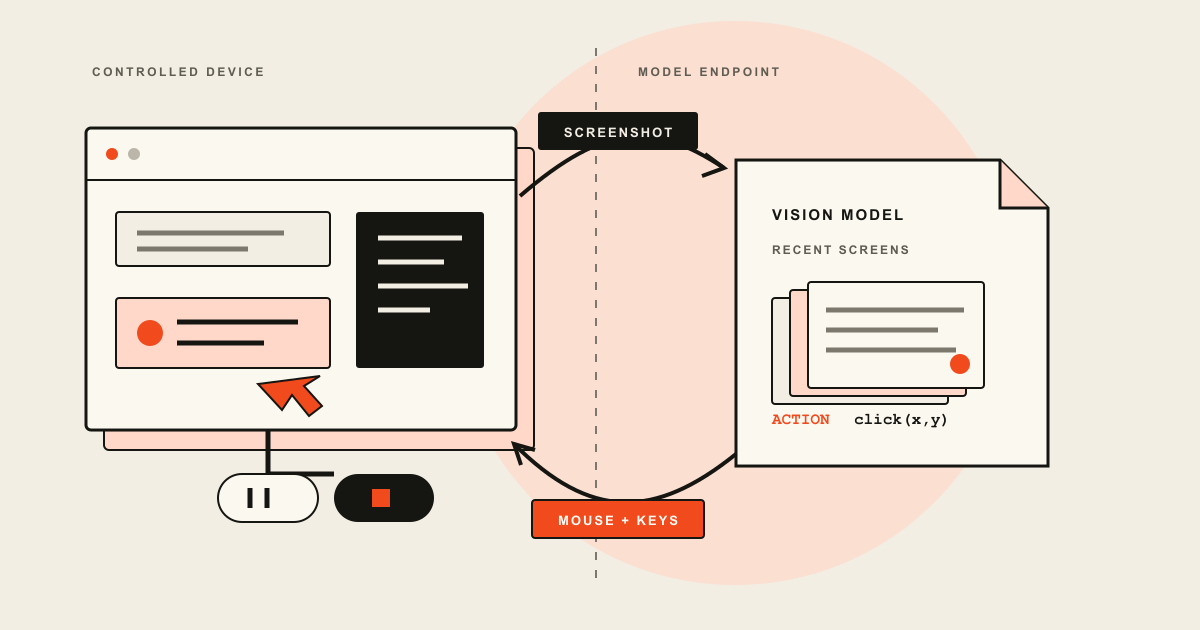
UI-TARS Desktop is a macOS and Windows application that captures screenshots, sends the instruction and recent visual history to a configured vision-language model, parses the model's next action, and executes it through a computer or browser operator. A local operator controls the device in front of you, but inference is private only when the configured model endpoint is also under your control. Use a separate test account, restrict the endpoint and API key, start with a low step limit, and keep payments, deletions, credential entry, and irreversible actions under direct human control.
The UI-TARS desktop agent can look at a screen, decide where to click, type into applications, and repeat the cycle until it believes a task is complete. That compact description hides two separate systems: a vision-language model that predicts the next action, and an operator that carries the action out. Where each system runs determines what leaves the computer and what the agent can touch.
This distinction matters because the application's "local operator" label describes the computer being controlled. It does not, by itself, describe where model inference happens. If the app points to a hosted Hugging Face or VolcEngine endpoint, screenshots travel to that endpoint. Fully local processing requires a model service you control as well as a local operator.
UI-TARS is research software and an open-source application, not a hardened unattended automation product. Its model reports show meaningful progress on controlled tasks, but they also record missed tasks, hallucinated elements, high compute needs, and misuse potential. It is best approached as a capable lab instrument with broad desktop permissions.
Names and project scope
The names have shifted as ByteDance expanded the codebase. Keeping them separate prevents a surprising number of setup mistakes.
| Name | What it refers to | Practical consequence |
|---|---|---|
| UI-TARS | The native GUI agent model family and research project | It predicts actions from screenshots and interaction history |
| UI-TARS-1.5-7B | The publicly released 7B model linked by the model repository | This is the downloadable model most readers can evaluate themselves |
| UI-TARS-2 | A later GUI-centered, all-in-one agent described in a September 2025 technical report | Its reported results do not automatically describe the stable desktop application |
| UI-TARS Desktop | The Electron application for computer and browser operation | It connects a model endpoint to an operator on macOS or Windows |
| Agent TARS | A broader CLI and Web UI stack with GUI, browser, terminal, MCP, and other tools | It has a different runtime and a wider tool surface than UI-TARS Desktop |
| TARS | The umbrella label now used by the shared repository | A repository tag is not necessarily a desktop app release |
The last point is easy to miss. The shared UI-TARS-desktop repository has a v0.3.0 release from November 2025, but the release notes describe Agent TARS CLI and contain no desktop installers. The latest release page that contains UI-TARS Desktop .dmg, .zip, and Windows setup assets is UI-TARS Desktop v0.2.4, published on August 21, 2025.
UI-TARS-2 creates a second possible misunderstanding. The UI-TARS model repository announces the new model and links its report, while the current Desktop README says the app is driven by UI-TARS and Seed 1.5 or 1.6 model lines. The Desktop settings guide still documents provider parsers for UI-TARS-1.0, UI-TARS-1.5, and Doubao-1.5 variants. There is no documented stable-app recipe that says to select UI-TARS-2 and run it as a drop-in replacement. Treat the model report and the downloadable desktop package as related projects with separate compatibility questions.
This article focuses on UI-TARS Desktop. Agent TARS belongs to the broader AI agent ecosystem and needs a separate review because shell, filesystem, MCP, and web tools change the risk model.
How the screenshot-to-action loop works
The original UI-TARS paper defines a native GUI agent: the model receives screenshots rather than depending on a DOM or accessibility tree, reasons about the current state, and emits an action from a predefined action space. The desktop application supplies the machinery around that model.
The official SDK sequence is unusually helpful because it states what crosses each boundary:
- The operator captures a screenshot and reports the physical screen size.
- The agent sends the instruction, available action descriptions, and up to the last five screenshots to the configured model service.
- The model returns text containing a thought and an action, such as a click at a coordinate.
- An action parser converts that output into a structured prediction.
- The operator executes the prediction with mouse, keyboard, scrolling, or browser controls.
- The next screenshot becomes feedback for another model call.
The action space covers clicks, double clicks, right clicks, dragging, typing, hotkeys, scrolling, waiting, completion, and a call_user action. Coordinate conversion matters because the model may reason over a resized image. The runtime maps predicted coordinates back to the physical screen before the operator moves the pointer.
The loop gives UI-TARS its portability. It can work with an ordinary visual interface even when an application exposes no integration API. It also creates the main failure mode. A slightly wrong coordinate is not a harmless text error. It becomes an actual click, and the resulting state enters the next screenshot.
Short-term memory is visual but bounded. The paper retains actions and thoughts while limiting full observations to the last N screenshots, and the SDK guide specifies the last five screenshots. That helps with context size, but it means an early warning, prior dialog, or changed state can fall out of view during a long run.
There are also two loop defaults in the same project. The experimental SDK guide documents a default maximum of 25 loops. The Desktop settings guide documents a default of 100 and allows values from 25 to 200. For desktop safety, use the value shown in the installed app and lower it for early trials. A maximum is a containment boundary, not a target to reach.
Choose a setup path before installing
There is no single "local setup." Choose the controlled environment, model host, and operator separately.
| Setup | What stays local | What leaves the machine | Best fit |
|---|---|---|---|
| Desktop app with hosted UI-TARS endpoint | Mouse and keyboard execution | Instructions, screenshots, and recent interaction context go to the provider | Fast evaluation with non-sensitive screens |
| Desktop app with a self-hosted endpoint | Execution and model inference can remain on infrastructure you control | Depends on the endpoint address, logging, and network path | Teams able to operate a compatible GPU service |
| Local browser operator with hosted model | Actions are constrained to a browser surface, but the browser may still hold sessions | Browser screenshots and task context go to the model provider | Web tasks in a separate browser profile |
| Remote computer or browser operator | The personal desktop can remain outside the action loop | Screenshots and actions occur in the remote environment | Disposable or isolated workloads, if you provide the remote service |
The official quick start provides macOS and Windows installers and a Homebrew cask command. Browser Operator expects Chrome, Edge, or Firefox. The documentation warns that UI-TARS Desktop supports only a single-monitor setup and that multiple monitors can break some tasks. Do not dismiss that as a cosmetic issue. A coordinate agent that misunderstands the active display can click the wrong application.
On macOS, installation is followed by two system grants under Privacy & Security: Accessibility and Screen Recording. Accessibility permits control of input and applications. Screen Recording exposes pixels from the desktop. Both are necessary for a local computer operator, and together they are powerful.
The model configuration requires four values: provider type, OpenAI-compatible base URL, API key, and model name. Select the provider parser that matches the model. UI-TARS action syntax is model-specific enough that a generic vision model may produce plausible prose that the operator cannot parse safely.
ByteDance's current UI-TARS-1.5 deployment guide describes a Hugging Face Inference Endpoint and recommends a 48 GB L40S instance for the 7B model, with L4 or A100 also named. That is a cloud deployment recipe, despite serving an open model. Running the weights on your own workstation or server is possible only if you supply a compatible service and enough hardware. The desktop app does not make a 7B vision model fit an ordinary laptop.
For a first trial, create a new OS account, a clean browser profile, and a small reversible task. A good smoke test opens an application and changes a harmless preference. A bad smoke test includes email, cloud storage, a password manager, production credentials, or a shopping account.
What local and remote mean in UI-TARS
UI-TARS uses "operator" for the environment where screenshots are captured and actions are executed. It uses the VLM base URL for the place where decisions are generated. Those locations can differ.
A local computer operator captures your current desktop and moves your real mouse and keyboard. If its VLM base URL points to a cloud provider, the model side is remote. The app's README calls the system private and capable of fully local processing, but that statement is conditional. Privacy follows the endpoint, its retention policy, network path, and logs.
A remote operator moves the controlled desktop into a hosted computer or browser instance. This can reduce the blast radius on a personal workstation, but it does not make the session private. The remote service can receive the screen state, task, browser traffic, and credentials entered into that instance.
The project's free Remote Operator service is no longer a usable default. The quick start says it was discontinued on August 20, 2025 and points readers to Volcano Engine services for self-deployment. Any article or video that promises one-click free remote operation is describing a past trial.
Browser operation narrows the visible surface but is not a complete sandbox. A browser profile can expose authenticated sessions, downloaded files, extensions, autofill, and password-manager prompts. Use a dedicated profile with no saved payment data and only the accounts required for the task.
Permissions, screenshots, keys, and reports
Desktop automation collapses several trust boundaries into one loop. The model can see whatever appears in captured screenshots. The operator can type whatever the model returns. The app can continue for many steps without asking about each action.
The UI has pause and stop controls, and the model action space includes call_user for cases such as login or authentication. These controls are useful, but they are not a universal approval gate. The SDK's documented sequence executes each parsed prediction through the operator. The project does not document mandatory confirmation before purchases, sends, deletions, permission changes, or command execution typed into a terminal.
Screen data deserves the same handling as the underlying application data. A screenshot can contain a one-time code, customer record, private message, internal URL, API token, or document that was never meant to leave the device. With a hosted VLM, recent screenshots and the instruction form model requests. Check the chosen provider's data terms before opening sensitive material.
API keys need their own boundary. The current application source stores VLM settings with electron-store, and its settings change handler serializes old and new setting objects to application logs. Do not use a broad, high-value organization key. Create a dedicated key with a budget, provider-side usage alerts, and the narrowest available scope. Remove it when the evaluation ends, and treat local application logs as sensitive.
Reporting features are optional in the default settings. The settings guide says the report storage URL and the UI-TARS Insights and Observation URL are blank by default. If configured, report export can upload HTML after a confirmation, while the observation endpoint can receive launch data, submitted instructions, and share events that may include the last screenshot. The documented report storage interface has no authentication mechanism. Leave both URLs empty unless you operate and trust the receiving service.
Remote presets add another route for configuration changes. The code supports importing a preset from a URL and optionally refreshing it when the app starts. Review preset YAML locally before importing it, avoid automatic updates from an untrusted host, and confirm the base URL after any preset change.
These are access-control decisions, not mere preferences. The same principle applies to the wider problem of agent identity and scoped authorization: an agent should receive a defined actor, resource boundary, and audit trail instead of inheriting every permission of the person at the keyboard.
Run UI-TARS with safer boundaries
No prompt can substitute for containment. Use operating-system and service controls that still hold when the model chooses the wrong action.
- Run the first sessions in a disposable virtual machine or a separate low-privilege OS account.
- Keep personal email, messaging, finance, cloud storage, and password-manager sessions closed.
- Give the task a narrow completion condition and set the smallest practical loop count.
- Use a dedicated browser profile with downloads directed to a disposable folder.
- Keep pause and stop controls visible. Watch every run that can change external state.
- Enter passwords and one-time codes yourself only after the agent pauses. Never place secrets in the task text.
- Require direct human action for sending messages, submitting forms, purchasing, deleting, publishing, changing permissions, or accepting legal terms.
- Point self-hosted services at loopback or a private interface protected by authentication and firewall rules.
- Rotate the model API key after a short evaluation and inspect provider usage for unexpected volume.
The network binding deserves special attention in the shared repository. In July 2026, ByteDance merged a change that made 127.0.0.1 the default host for its MCP HTTP server package instead of all interfaces. An earlier 2025 fix removed a development flag that omitted authentication for an MCP inspector. Those changes concern the wider TARS stack, but they illustrate the right default: a control service should not listen beyond the local machine unless an operator deliberately exposes and protects it.
The repository's security policy provides a vulnerability reporting route, yet its supported-version table still lists only 0.0.x. That table has not kept pace with the available UI-TARS Desktop 0.2.x installers or the later Agent TARS releases. An empty public advisory list would mean only that no advisory is published there. It would not establish that a highly privileged desktop agent is safe for unsupervised production work.
Read the benchmark numbers correctly
UI-TARS results answer research questions about models. They do not measure the exact app, endpoint, operating system, monitor, latency, and account state on your desk.
| Reported system | Official result | What the number does not prove |
|---|---|---|
| UI-TARS-72B-DPO, original paper | 24.6 on OSWorld with a 50-step budget | That the public 7B model or desktop installer reaches the same score |
| UI-TARS-1.5-7B | 27.5 on OSWorld in the model repository's scale table | That a single run will be dependable on a changed live application |
| UI-TARS-1.5, top model line | 42.5 on OSWorld with 100 steps | That the top model is the same artifact as the public 7B weights |
| UI-TARS-1.5 | 94.2 on ScreenSpot v2 grounding | That it completes 94.2 percent of long desktop tasks |
| UI-TARS-2 technical report | 47.5 on OSWorld | That UI-TARS Desktop v0.2.4 has UI-TARS-2 integration or performance |
ScreenSpot tests whether a predicted point lands on a target element. OSWorld evaluates task completion in controlled desktop environments. The original paper used 369 OSWorld tasks, screenshot-only input, and averages across three runs to reduce environmental noise. Those are useful methods, but live desktops add notifications, updates, account-specific layouts, popups, network delays, and private data.
Step budgets also change the comparison. More steps can improve success while creating more time for drift and more real actions. A 100-step result is not directly comparable with a 15-step result, and neither tells you how costly a wrong step would be in your application.
The authors document limits that demos can hide. UI-TARS-1.5 may misdescribe a screen, select the wrong element, or take a poor action in an unfamiliar interface. The public 7B release is focused on general computer use and trails the larger model line on OSWorld. The original paper also reports that explicit system-2 reasoning can introduce nonexistent objects or incorrect inferences under single-sample conditions, even when reasoning helps on out-of-domain tasks.
UI-TARS-2 improves the reported OSWorld score to 47.5 and mixes GUI interaction with filesystem and terminal capabilities during training. It still completes fewer than half of the benchmark's scored tasks under that evaluation. More tool access may reduce the need for slow visual navigation, but it also enlarges the set of possible side effects. Capability and safety do not move in lockstep.
Decide whether UI-TARS Desktop fits the task
UI-TARS Desktop is a reasonable research choice when the task must cross ordinary visual interfaces, the environment is disposable, and a person can watch the run. It is also useful for studying screenshot-only grounding, action parsing, and operator design without building a large orchestration stack.
It is a poor fit for unattended work in a personal account, any workflow that regularly displays secrets, or a task where one wrong click can create a financial, legal, or operational commitment. Traditional APIs and narrow automation remain easier to authorize, test, and audit when they exist.
The safest practical configuration is modest: UI-TARS Desktop v0.2.4 from the release page, one monitor, a clean OS account or virtual machine, a reviewed model endpoint, a restricted API key, an empty telemetry configuration, and a low loop limit. Start with reversible settings changes. Expand the boundary only after the run history shows where the agent fails, and keep irreversible actions outside that boundary.
Trace Brief records primary evidence and separates model claims from deployment assumptions under its editorial policy. Browse all computer use and agent field guides for related architecture and security coverage.
Sources and methodology
This article draws on the primary documentation and research listed below. An editor reviewed the technical claims and wording before publication.
- ByteDance UI-TARS-desktop repository — current project split, application features, operator types, model references, and release history
- UI-TARS Desktop quick start — supported desktop installation paths, browser prerequisites, macOS permissions, model configuration, monitor limit, and remote service status
- UI-TARS SDK guide — screenshot, model, action, operator loop; recent-image context; stop signal; and default SDK loop behavior
- UI-TARS model repository — UI-TARS-1.5 deployment, public model scope, benchmark tables, limitations, and UI-TARS-2 announcement
- UI-TARS: Pioneering Automated GUI Interaction with Native Agents — original native-agent architecture, unified action space, short-term visual history, reasoning method, and evaluation protocol
- UI-TARS-2 Technical Report — later model architecture, hybrid GUI and tool training, multi-turn reinforcement learning, and reported UI-TARS-2 results
- UI-TARS Desktop v0.2.4 release — latest release with UI-TARS Desktop installers for macOS and Windows in the shared repository
- UI-TARS-desktop security policy — official vulnerability reporting channel and the repository's published supported-version table
- MCP HTTP server loopback hardening commit — July 2026 change that made 127.0.0.1 the default bind address for shared MCP HTTP server packages